How I Stopped Letting Emails Control My Day
Due to the nature of my work, I am constantly managing inboxes.
One thing I learnt early on in my career (shout-out to Scott!) is not to let my emails control my day. Scott was my manager in my first team leader role. I believe we were having a supervision session or a catch-up where I mentioned how overwhelming emails can get.
At the time, I was working in a private mental health hospital leading a team of administrators for the outpatient therapy service. We always had so many emails flying through our personal and shared mailboxes, and it was proving difficult to keep up with the added workload of the role.
Scott shared with me that he had also had the same struggle before, until he changed his working day by adding blocks of time in his calendar to check his emails. When I implemented this way of working, it was truly life-changing. Checking your emails at set times, rather than constantly, helps you to avoid distractions and maintain productivity.
I went from feeling burdened and overwhelmed to feeling more in control over my working day.
Aside from time-blocking, I’d like to share 2 more simple yet effective ways to stay on top of your emails – folders/labels and rules/filters.
Organising your emails into folders creates a clear and consistent way of sorting your incoming emails and also filing away the emails you have handled.
Having folders also makes it easier to find old emails when you need to refer back to them. For example, folders in my personal emails are really useful when I need to find tickets for an event I purchased a month ago or to find an order confirmation email when liaising with customer service 😒😅…
It’s also visually appealing to use folders, as it helps to reduce emails in your main inbox and creates a better overview of outstanding tasks.
Ever since starting my business, I have been using Gmail more; however, in my employed capacities, I have always been an Outlook user.
I personally LOVE Outlook and prefer rules (Outlook) to filters (Gmail). It could be that I have more experience using Outlook as opposed to Gmail, but I feel that Outlook rules are a lot more thorough and structured. But of course, you have to just make the most of what you’ve got.
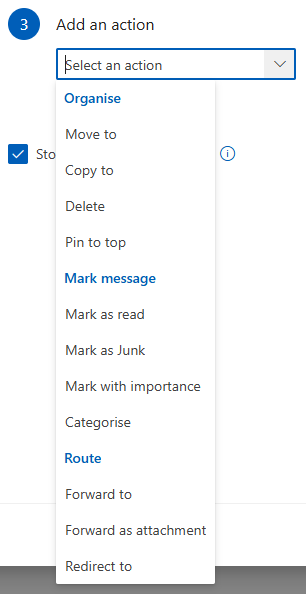
Outlook Rules
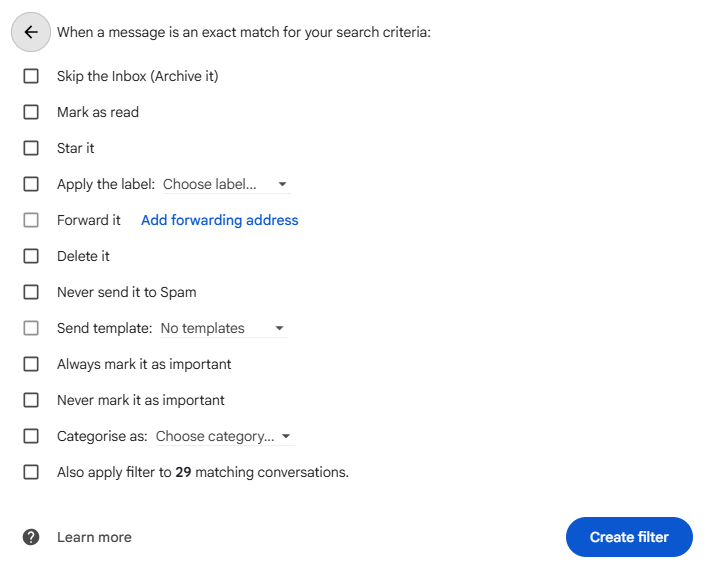
Gmail Filters
I love to use rules to automatically sort and handle my incoming mail. This is a great way to build on my previous recommendation of using folders. For example, when working in a busy role where you wear many hats, you can use rules to separate emails from the different parts of your role. You could have a rule that sorts emails from specific stakeholders, executives or colleagues; a rule that picks up emails with “invoice” in the subject; and a rule that automatically marks a no-action-needed email as read. Another reason why I prefer Outlook over Gmail is Quick Steps. This feature is a great way to combine the art of rules and folders in one quick step.
Bonus Outlook tip
I love to mark emails as completed. Even just thinking about this makes me feel warm inside. No honestly, there is a certain feeling when a flagged email turns into a completed one.
Jokes aside, this is a great way to make a clear distinction in your inbox between emails that have been dealt with and emails that still require your attention.
On Gmail, I will usually just sort completed emails into a folder/label where all completed emails under that label are stored. Anything I haven’t finished dealing with, I keep in my main inbox.
Your emails shouldn’t control your day, especially if you want to make real progress with your core responsibilities.
I hope you can take on one of these tips to improve your workflow. If you know of someone who has shared that they struggle with managing their emails, why not share this with them!
If you’re just too busy to implement these tips, or would like to work smarter (by outsourcing this part of your life to someone reliable and experienced), let’s work together! I offer inbox and email management as a service and also have add-ons such as inbox clean-up, support setting up inbox rules & filters, and inbox organisation (setting up client-specific folders/filters). Add-ons can be offered at individually set rates or as part of a packaged bundle.